
'%3e%3cpath%20d='M9%2021H15'%20stroke='black'%20stroke-width='2'%20stroke-linecap='round'%20stroke-linejoin='round'/%3e%3cpath%20d='M5.25001%209.75C5.25001%207.95979%205.96116%206.2429%207.22703%204.97703C8.4929%203.71116%2010.2098%203%2012%203C13.7902%203%2015.5071%203.71116%2016.773%204.97703C18.0388%206.2429%2018.75%207.95979%2018.75%209.75C18.75%2013.1081%2019.5281%2015.8063%2020.1469%2016.875C20.2126%2016.9888%2020.2472%2017.1179%2020.2474%2017.2493C20.2475%2017.3808%2020.2131%2017.5099%2020.1475%2017.6239C20.082%2017.7378%2019.9877%2017.8325%2019.8741%2017.8985C19.7604%2017.9645%2019.6314%2017.9995%2019.5%2018H4.50001C4.36874%2017.9992%204.23997%2017.964%204.12659%2017.8978C4.0132%2017.8317%203.91916%2017.7369%203.85387%2017.6231C3.78858%2017.5092%203.75432%2017.3801%203.75452%2017.2489C3.75472%2017.1176%203.78937%2016.9887%203.85501%2016.875C4.47282%2015.8063%205.25001%2013.1072%205.25001%209.75Z'%20stroke='black'%20stroke-width='2'%20stroke-linecap='round'%20stroke-linejoin='round'/%3e%3c/g%3e%3cdefs%3e%3cclipPath%20id='clip0_4762_133'%3e%3crect%20width='24'%20height='24'%20fill='white'/%3e%3c/clipPath%3e%3c/defs%3e%3c/svg%3e)
'%3e%3cpath%20d='M24%200H0V24H24V0Z'%20fill='white'%20fill-opacity='0.01'/%3e%3cpath%20d='M12%2011C14.2091%2011%2016%209.20914%2016%207C16%204.79086%2014.2091%203%2012%203C9.79086%203%208%204.79086%208%207C8%209.20914%209.79086%2011%2012%2011Z'%20stroke='black'%20stroke-width='2'%20stroke-linecap='round'%20stroke-linejoin='round'/%3e%3cpath%20d='M4%2021V20.4857C4%2018.5655%204%2017.6055%204.38753%2016.872C4.72841%2016.2269%205.27235%2015.7024%205.94138%2015.3737C6.70196%2015%207.6976%2015%209.68889%2015H14.3111C16.3024%2015%2017.298%2015%2018.0586%2015.3737C18.7276%2015.7024%2019.2716%2016.2269%2019.6125%2016.872C20%2017.6055%2020%2018.5655%2020%2020.4857V21'%20stroke='black'%20stroke-width='2'%20stroke-linecap='round'%20stroke-linejoin='round'/%3e%3c/g%3e%3cdefs%3e%3cclipPath%20id='clip0_4762_139'%3e%3crect%20width='24'%20height='24'%20fill='white'/%3e%3c/clipPath%3e%3c/defs%3e%3c/svg%3e)

微服托管代码?我选择Gitea!
Square
作为开发者,你肯定用过Github、Gitee之类的平台。可是有些场景下,自行部署一个代码托管平台更方便。下面,我将介绍如何使用gitea。
1. 安装
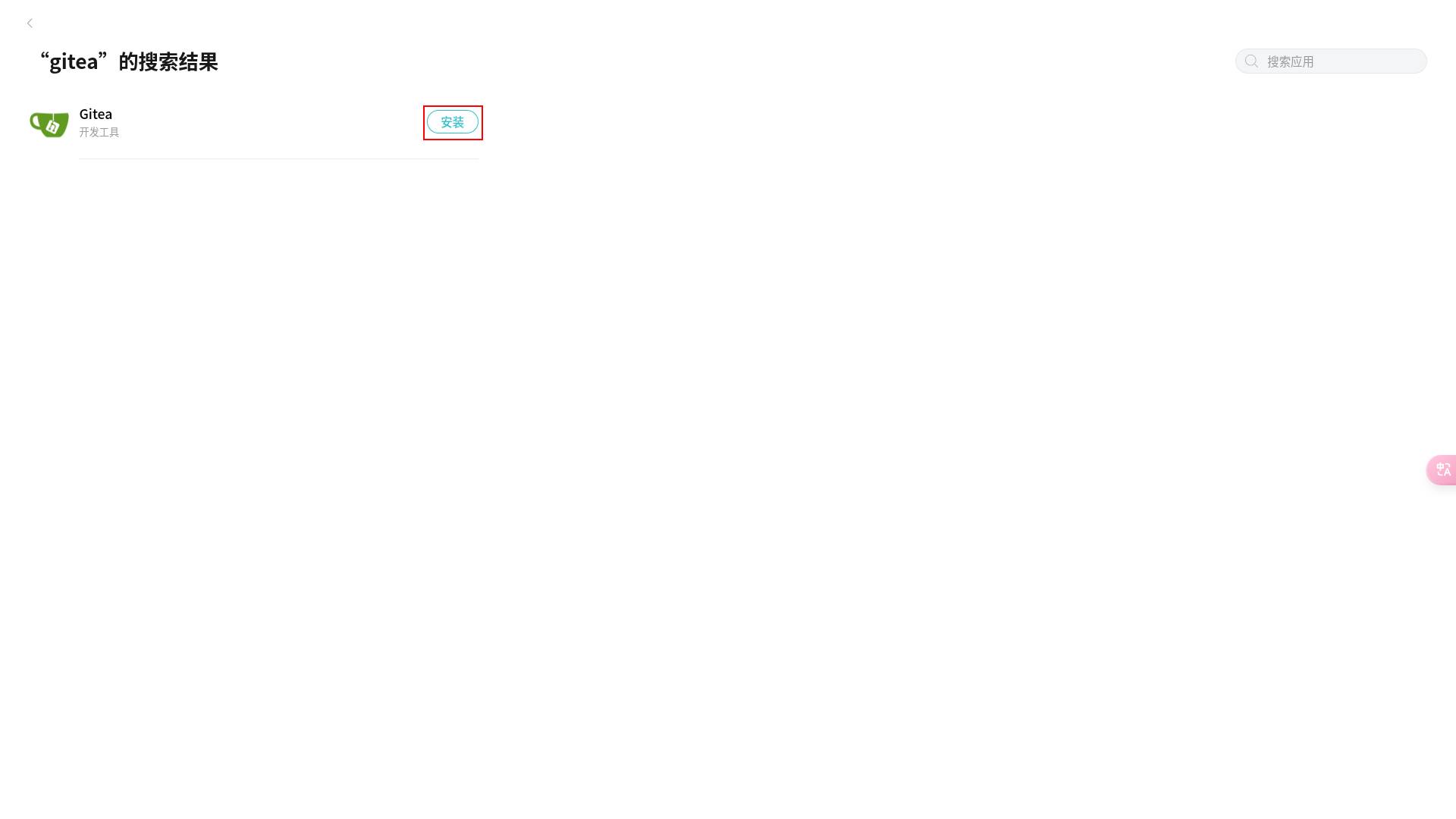
首先,去商店搜索Gitea,找到那个绿色的茶杯,点击安装,等待完成
2. 初始配置
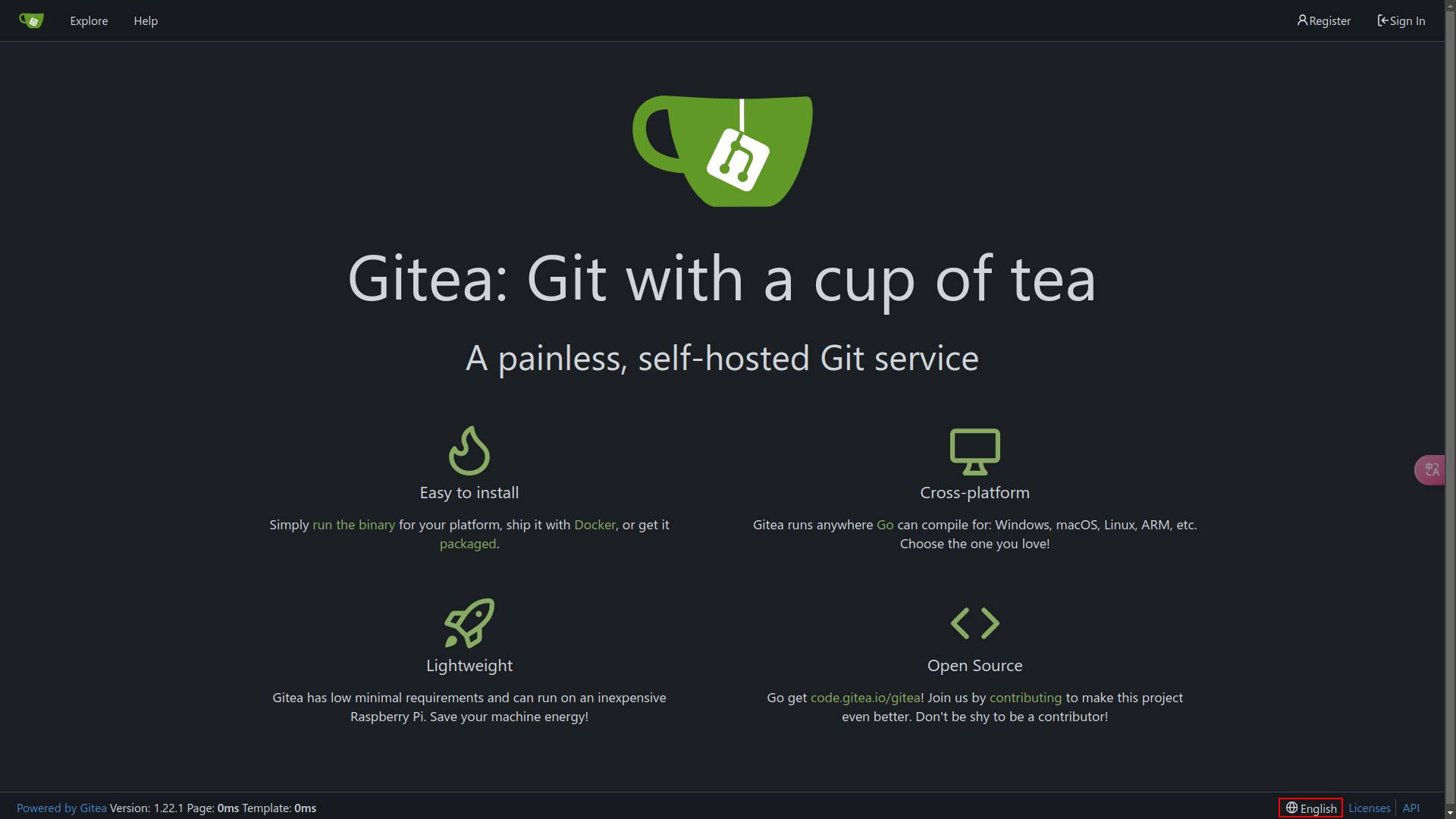
安装完成后打开Gitea,进入首页,如果不习惯默认语言,可以在右下角修改显示语言:
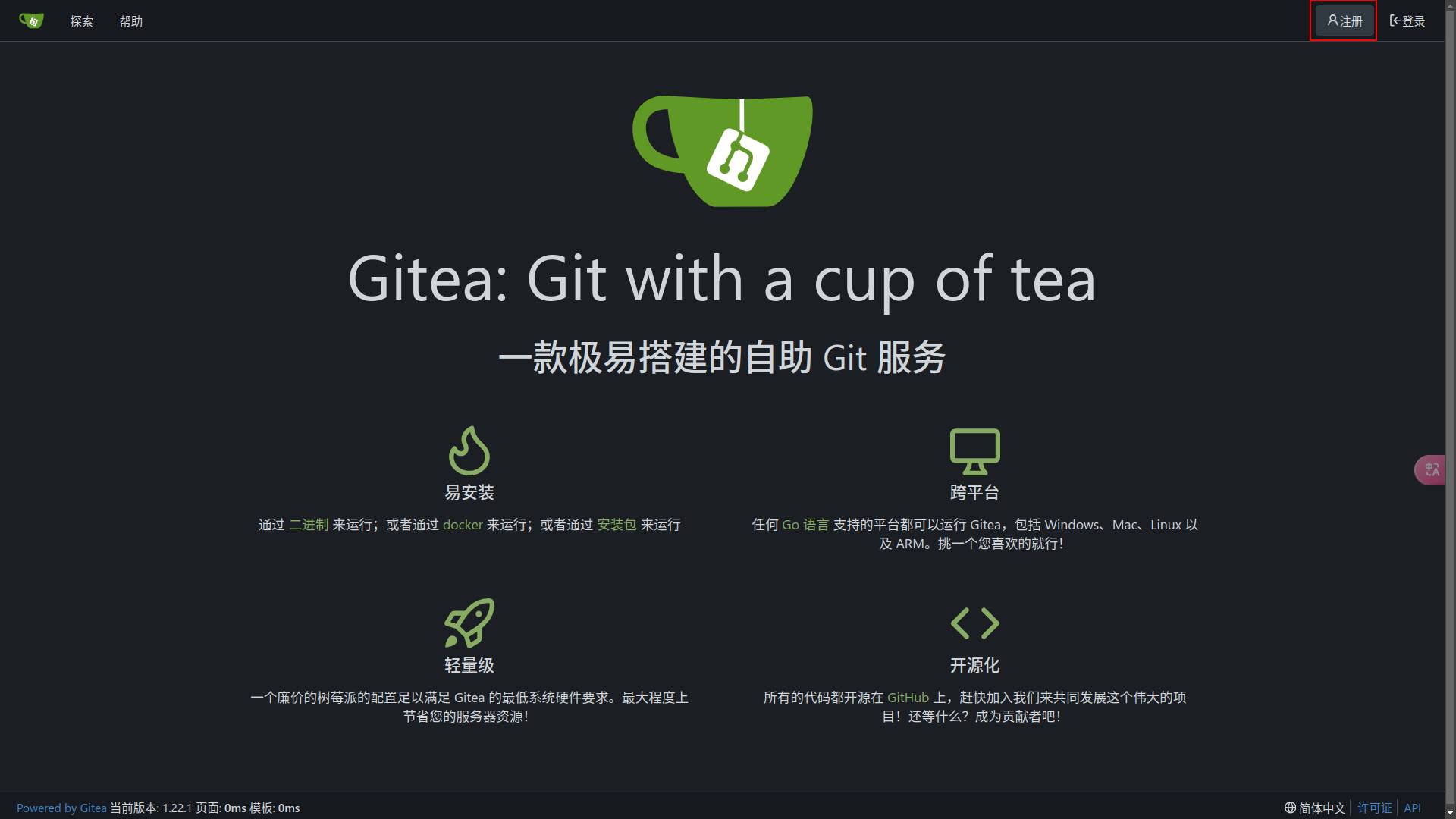
这时候Gitea还没有任何账户,第一个注册的用户将成为整个Gitea管理员账户。所以管理员安装完后请尽快注册,点击右上角开始注册。
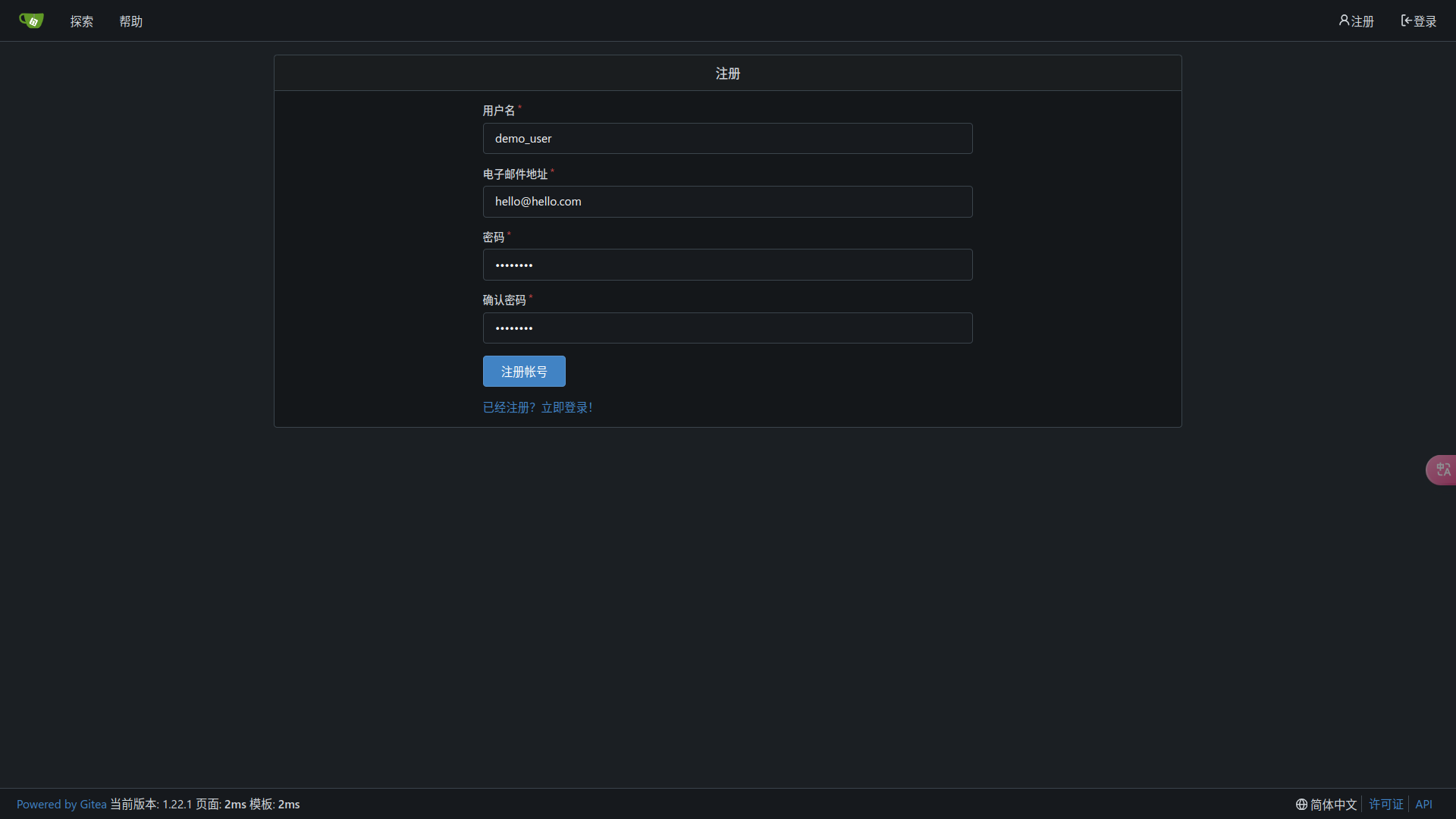
注册时需要填写邮箱。但是因为此时的gitea并没有配置任何邮箱服务,无法验证邮箱,所以在管理员配置邮箱服务前,邮箱不需要填写真实邮箱,填写一个格式正确的邮箱地址即可。填好注册信息后点注册帐号即可完成注册。
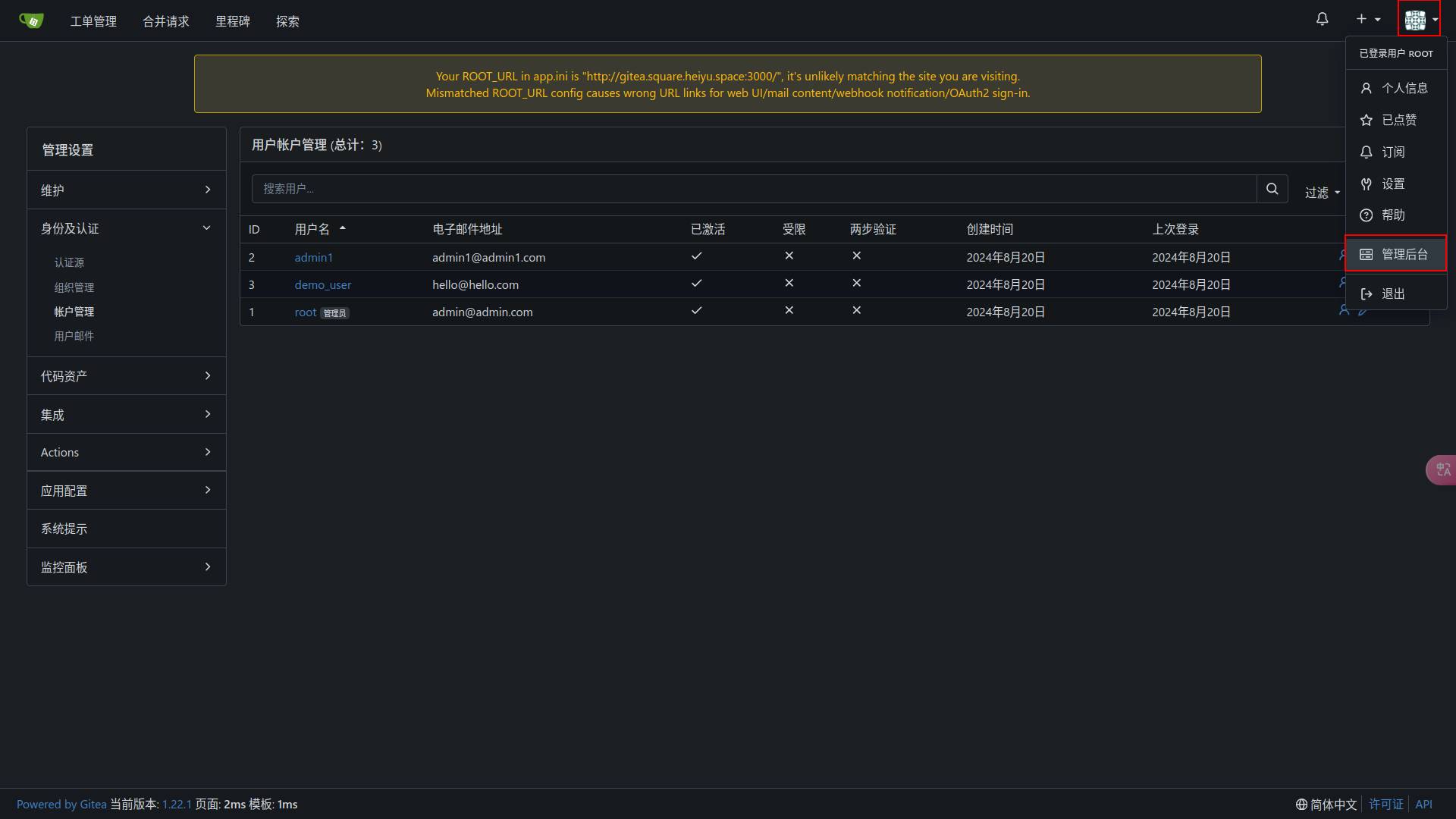
作为管理员账户,可以看到管理后台,对整个网站进行配置,比如删除帐号。也可以对其他人员赋予管理员权限,让他们也能管理网站。
3. 创建仓库
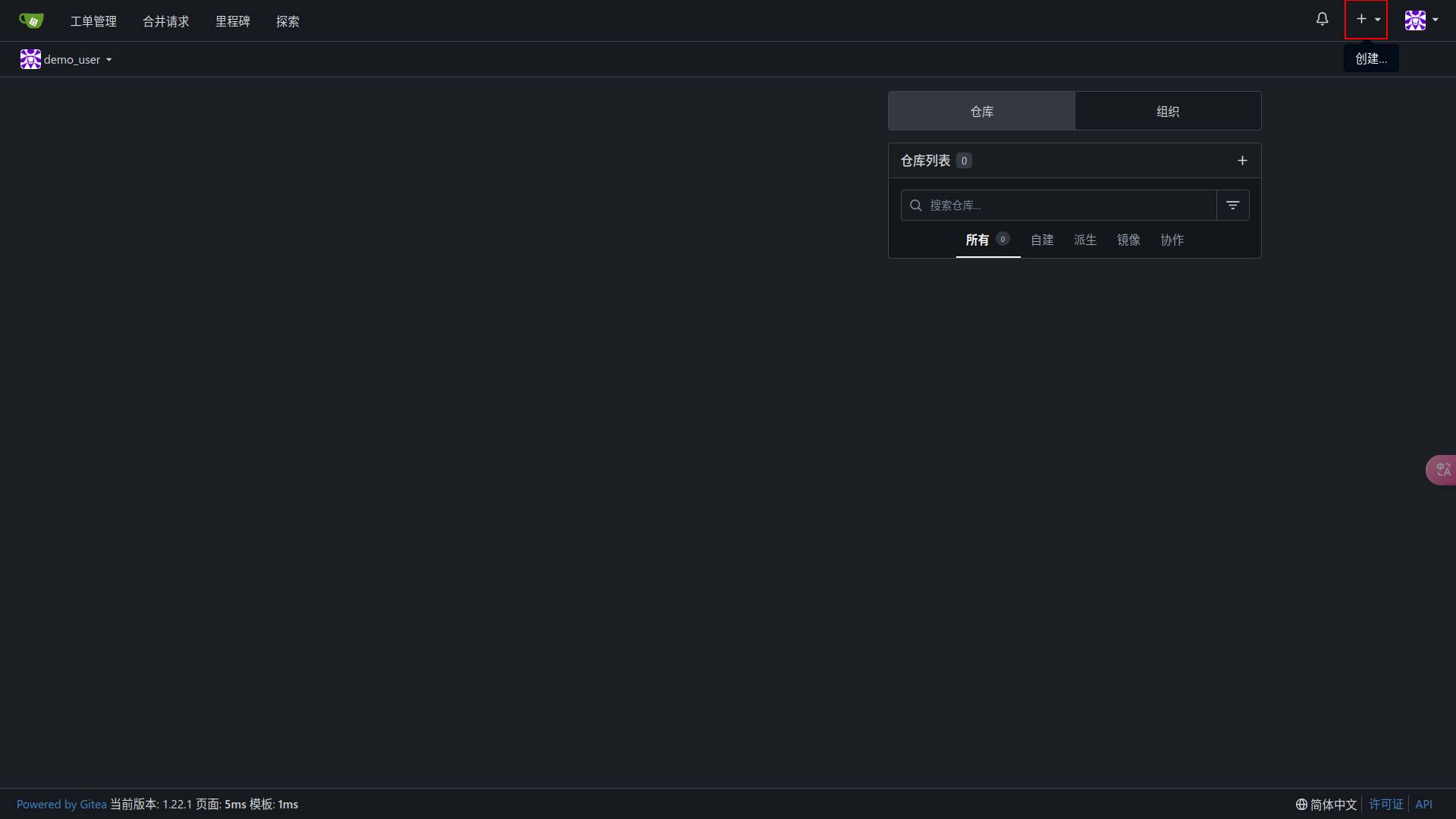
无论是否是管理员,默认情况都能创建自己的仓库,点击右上角的加号,选择创建仓库。
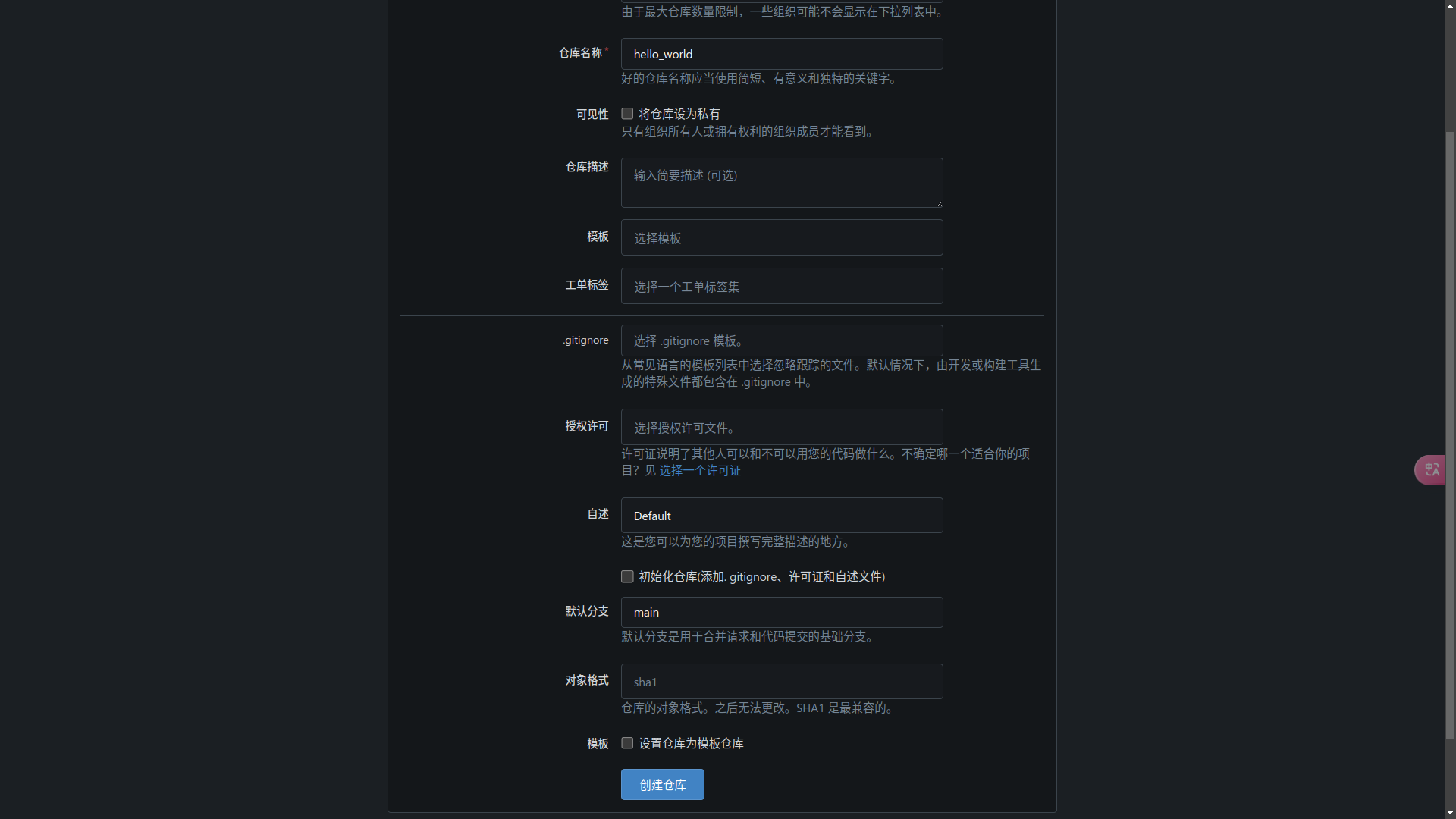
填好表单后点击底部创建仓库即可
4. 配置Git认证
到这里,一个部署在懒猫微服的代码仓库就已经创建好了,你可以放心地把代码push到这里,或者按照网页提示,初始化这个仓库。
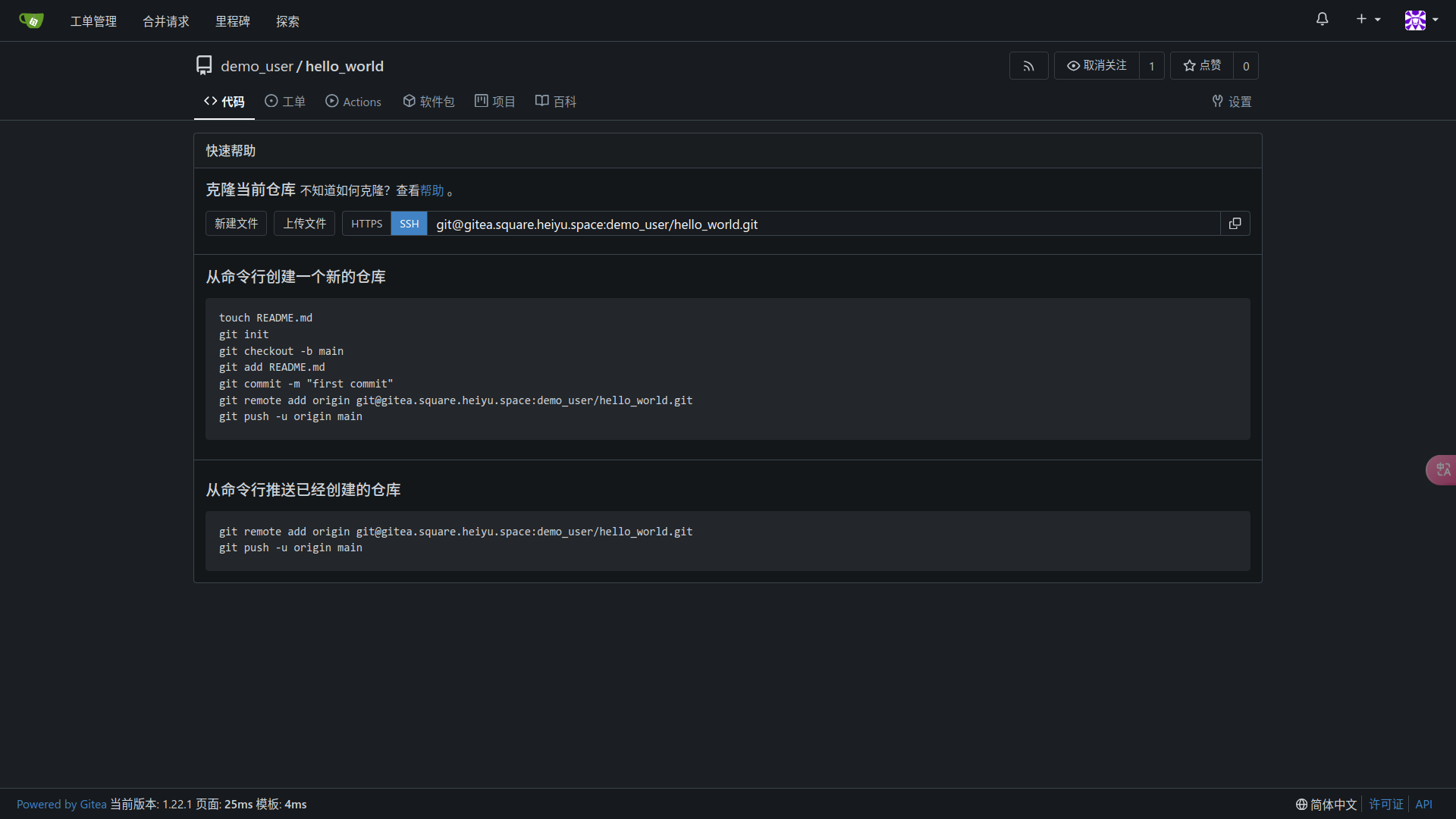
但是,push的时候,你可能会发现,如果选ssh,会出现报错:
ssh: connect to host gitea.square.heiyu.space port 22: Connection refused
fatal: Could not read from remote repository.

Please make sure you have the correct access rights
and the repository exists.
选https,则需要输入用户名和密码,十分麻烦。
这里就需要再进行一点配置了,下面将分别介绍ssh和https的免密如何配置,根据你的链接选择一项来配置就行
配置SSH免密
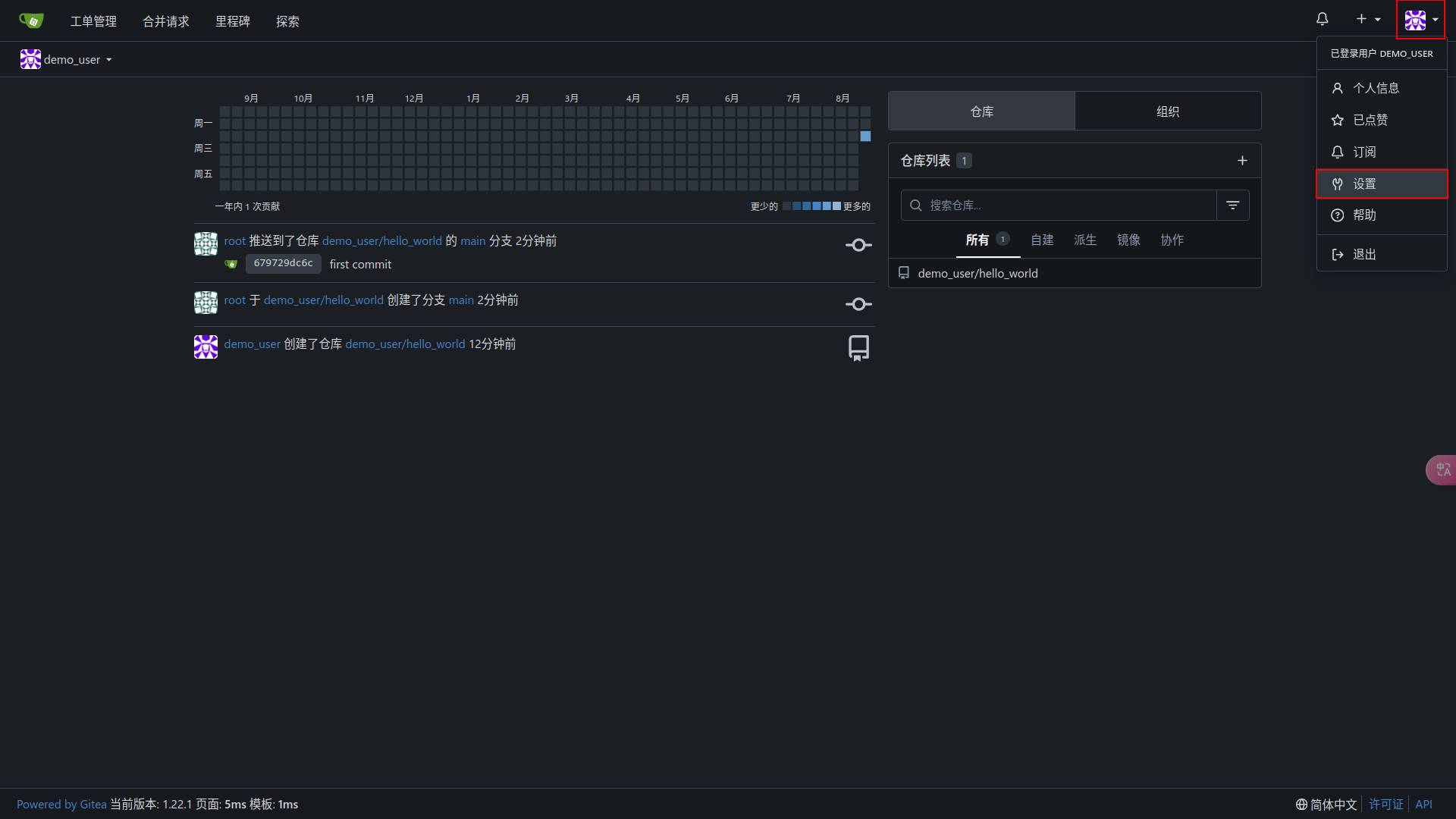
首先,点击右上角的头像,选择设置:
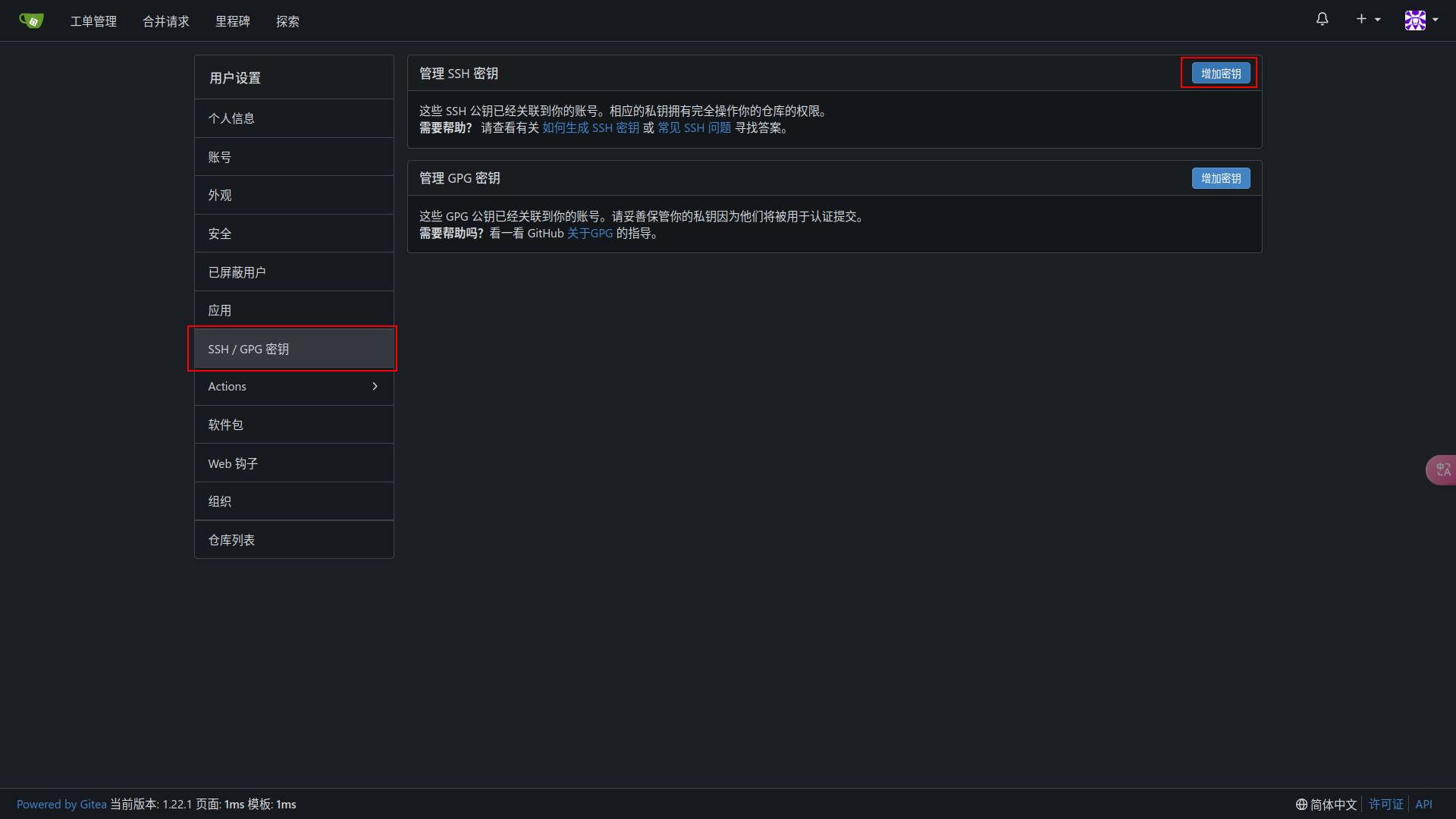
然后,选择左侧菜单的SSH/GPG密钥,选择右边的导入密钥。
将自己电脑的主目录(或者叫家目录,home目录)下的.ssh/id_ed25519.pub(有的电脑是id_rsa.pub)的内容拷贝到密钥内容的输入框中。密钥名称如果没有自动补全,或者想修改,可以自行填写,取一个名称。
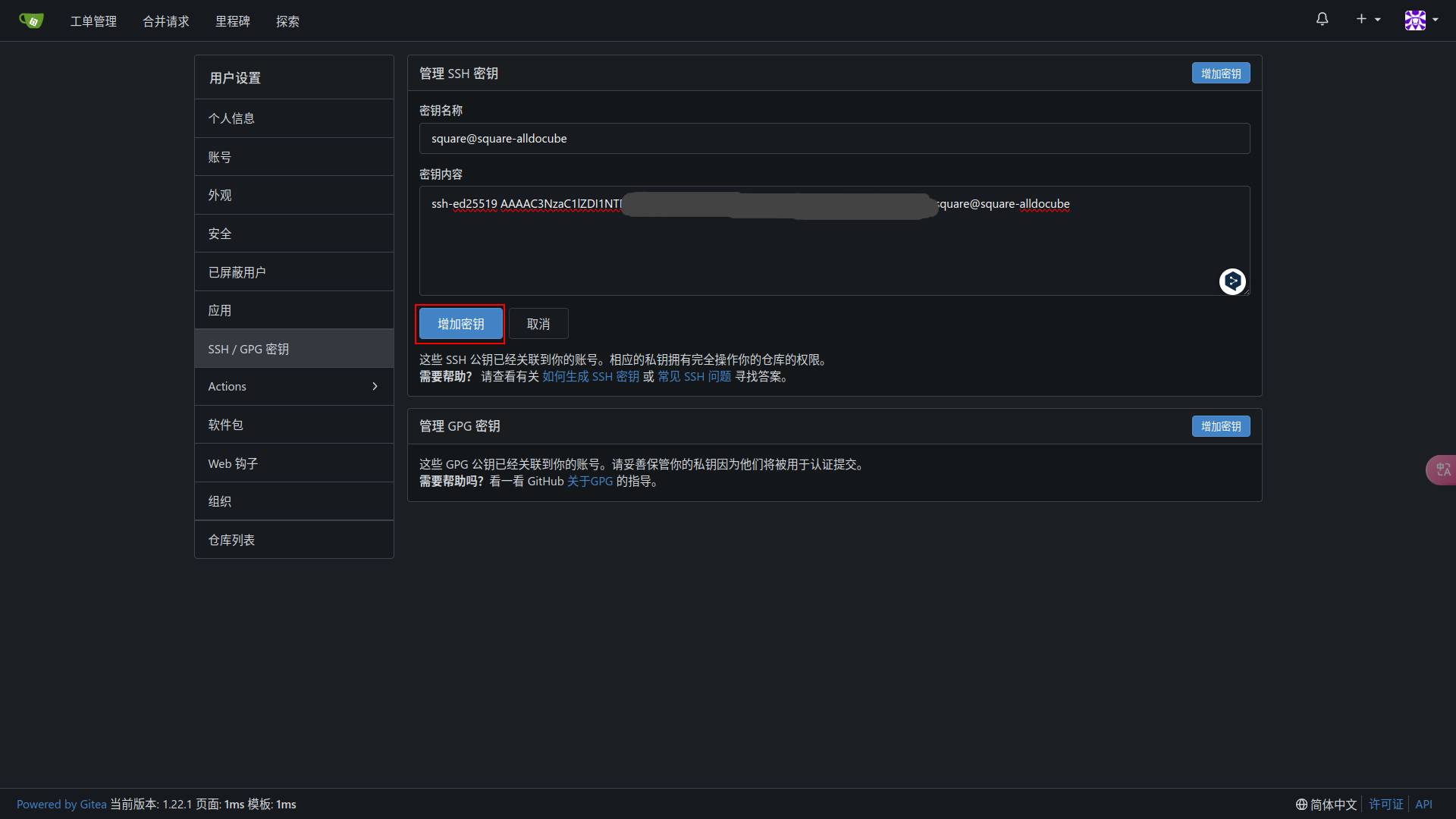
填好后选增加密钥,就完成添加啦。
如果电脑中没有.ssh/xxx.pub文件,那么可以使用ssh-keygen命令创建一个。
配置HTTPS免密
首先,点击右上角的头像,选择设置。然后,选择左侧菜单的应用。填入令牌名称,并在底下选择权限中把需要的权限改成读写(不确定的话都改成读写,问题不大)。最后点生成令牌
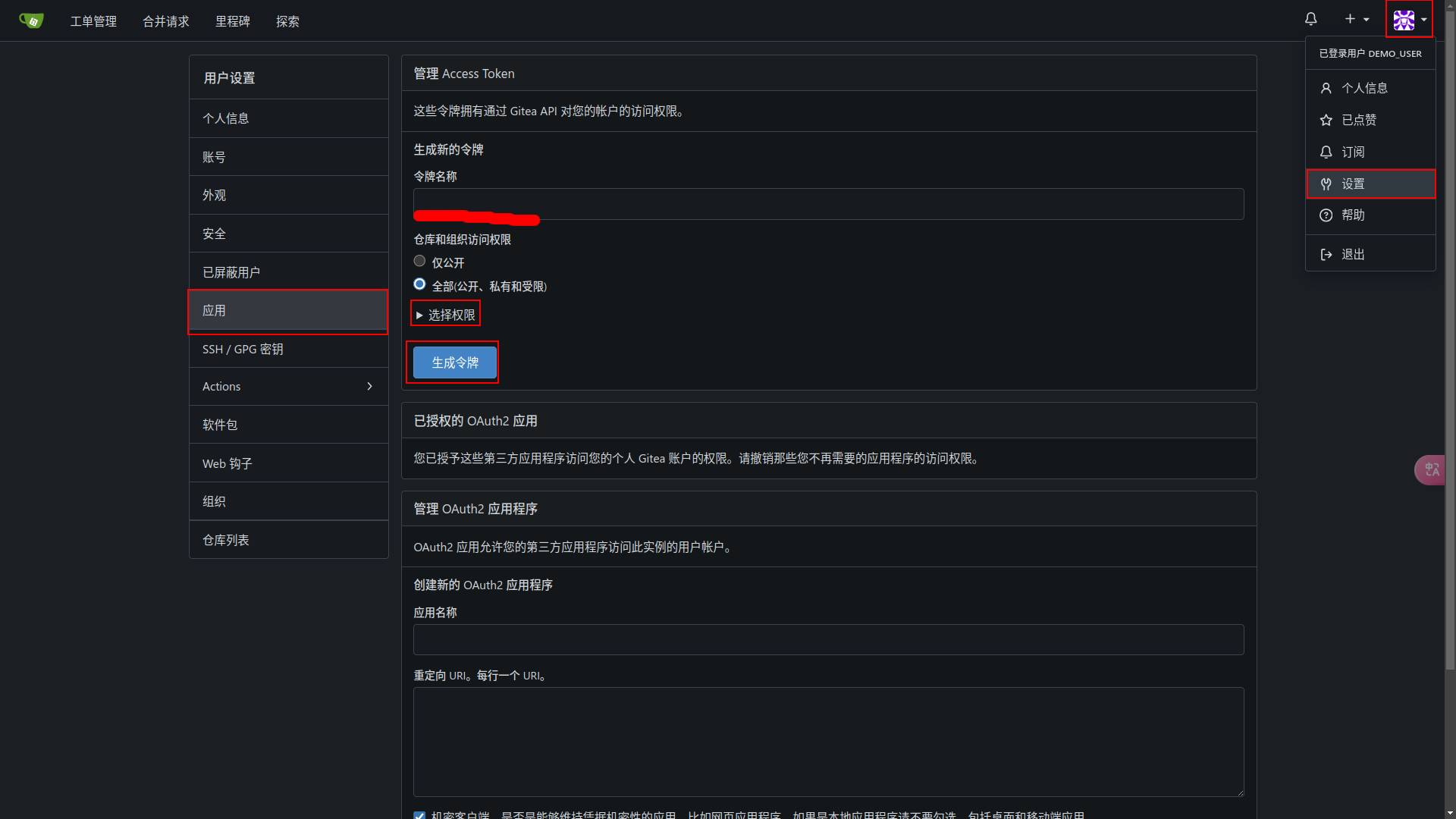
点击按钮后网页上方会显示这次生成的Access Token(或者叫令牌),请及时复制下来,这个只显示一次。
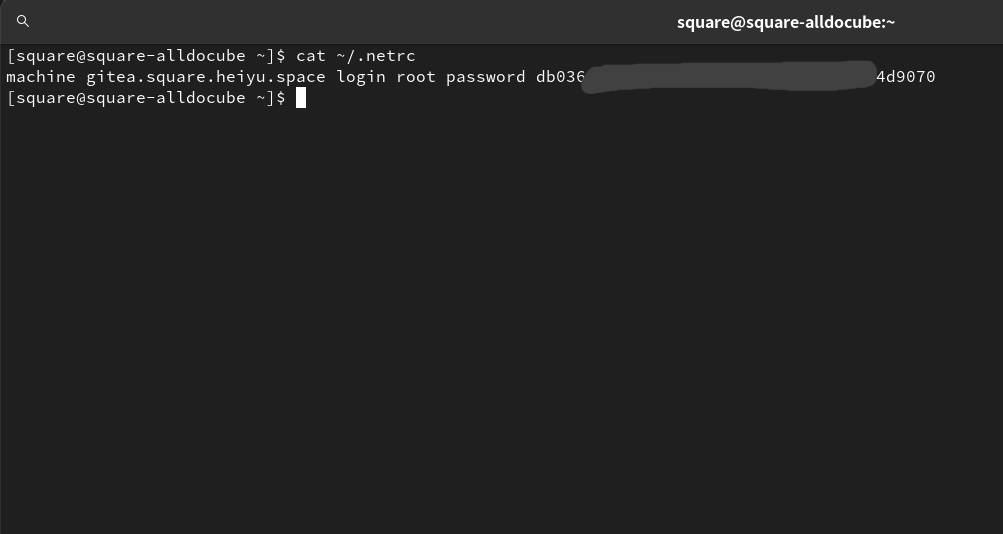
将自己电脑的主目录(或者叫家目录,home目录)下的.netrc文件(如果没有就创建一下)添加一行设置,即可实现https认证也不需要密码。
machine gitea在微服中的域名 login 你的用户名 password 刚刚生成的令牌
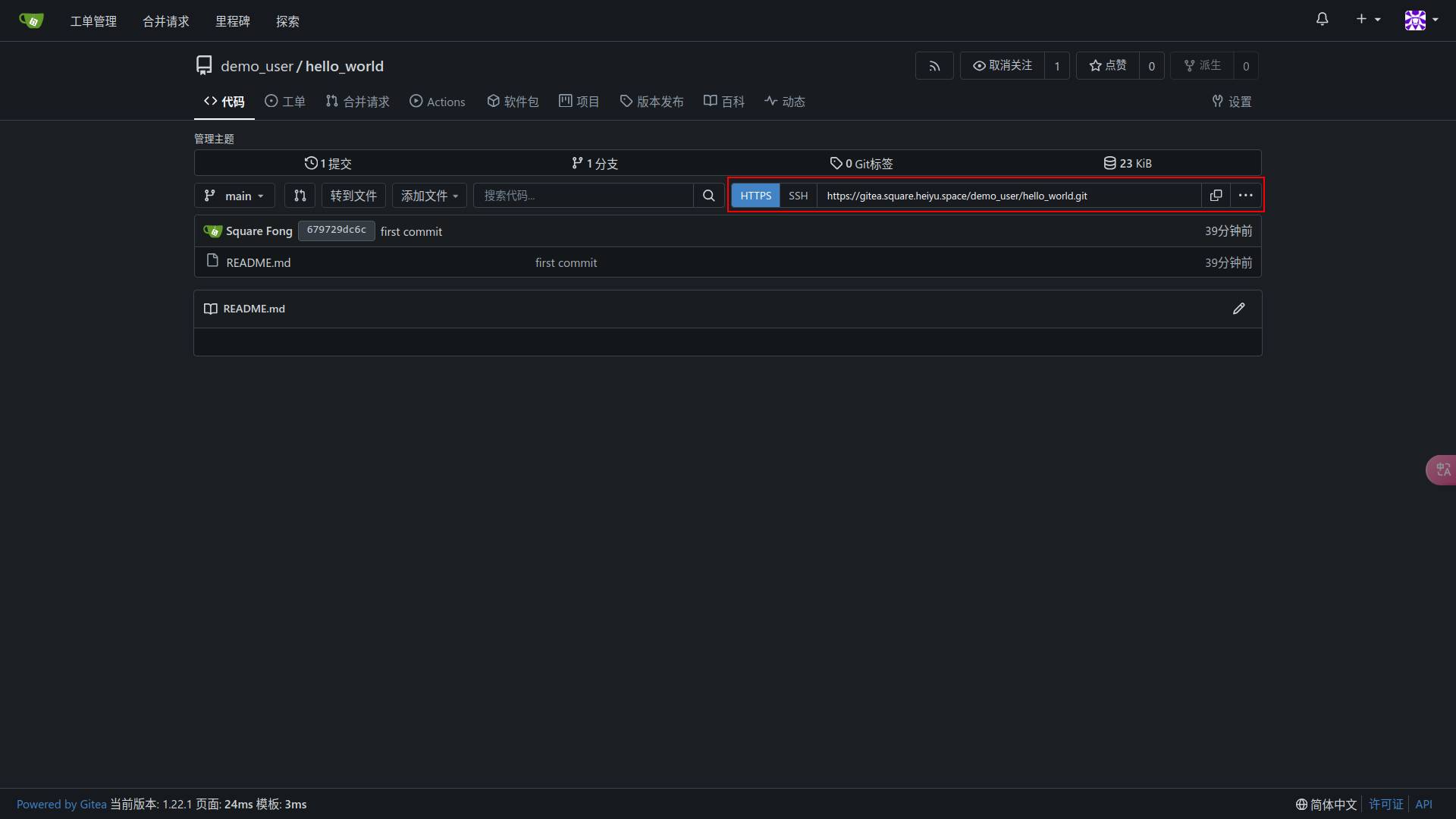
其中微服中的域名,其实就是仓库地址的域名:
比如我的.netrc就是这样的
结束
到这里就配置完成了。Enjoy Coding!
注意
Gitea搭建在懒猫微服上,需要开启懒猫微服客户端方可使用
如果在git clone这类操作中,出现Could not connect to server或者无法连接到服务器之类的报错,可以先检查一下懒猫微服客户端是否开启。
评论
3爱用
好用
沙发,我来尝尝鲜