
'%3e%3cpath%20d='M9%2021H15'%20stroke='black'%20stroke-width='2'%20stroke-linecap='round'%20stroke-linejoin='round'/%3e%3cpath%20d='M5.25001%209.75C5.25001%207.95979%205.96116%206.2429%207.22703%204.97703C8.4929%203.71116%2010.2098%203%2012%203C13.7902%203%2015.5071%203.71116%2016.773%204.97703C18.0388%206.2429%2018.75%207.95979%2018.75%209.75C18.75%2013.1081%2019.5281%2015.8063%2020.1469%2016.875C20.2126%2016.9888%2020.2472%2017.1179%2020.2474%2017.2493C20.2475%2017.3808%2020.2131%2017.5099%2020.1475%2017.6239C20.082%2017.7378%2019.9877%2017.8325%2019.8741%2017.8985C19.7604%2017.9645%2019.6314%2017.9995%2019.5%2018H4.50001C4.36874%2017.9992%204.23997%2017.964%204.12659%2017.8978C4.0132%2017.8317%203.91916%2017.7369%203.85387%2017.6231C3.78858%2017.5092%203.75432%2017.3801%203.75452%2017.2489C3.75472%2017.1176%203.78937%2016.9887%203.85501%2016.875C4.47282%2015.8063%205.25001%2013.1072%205.25001%209.75Z'%20stroke='black'%20stroke-width='2'%20stroke-linecap='round'%20stroke-linejoin='round'/%3e%3c/g%3e%3cdefs%3e%3cclipPath%20id='clip0_4762_133'%3e%3crect%20width='24'%20height='24'%20fill='white'/%3e%3c/clipPath%3e%3c/defs%3e%3c/svg%3e)
'%3e%3cpath%20d='M24%200H0V24H24V0Z'%20fill='white'%20fill-opacity='0.01'/%3e%3cpath%20d='M12%2011C14.2091%2011%2016%209.20914%2016%207C16%204.79086%2014.2091%203%2012%203C9.79086%203%208%204.79086%208%207C8%209.20914%209.79086%2011%2012%2011Z'%20stroke='black'%20stroke-width='2'%20stroke-linecap='round'%20stroke-linejoin='round'/%3e%3cpath%20d='M4%2021V20.4857C4%2018.5655%204%2017.6055%204.38753%2016.872C4.72841%2016.2269%205.27235%2015.7024%205.94138%2015.3737C6.70196%2015%207.6976%2015%209.68889%2015H14.3111C16.3024%2015%2017.298%2015%2018.0586%2015.3737C18.7276%2015.7024%2019.2716%2016.2269%2019.6125%2016.872C20%2017.6055%2020%2018.5655%2020%2020.4857V21'%20stroke='black'%20stroke-width='2'%20stroke-linecap='round'%20stroke-linejoin='round'/%3e%3c/g%3e%3cdefs%3e%3cclipPath%20id='clip0_4762_139'%3e%3crect%20width='24'%20height='24'%20fill='white'/%3e%3c/clipPath%3e%3c/defs%3e%3c/svg%3e)

客户端 + 懒猫微服:SSH 免密登录与安全加固的完整实践
王.W
发布于235天前暂时没想好
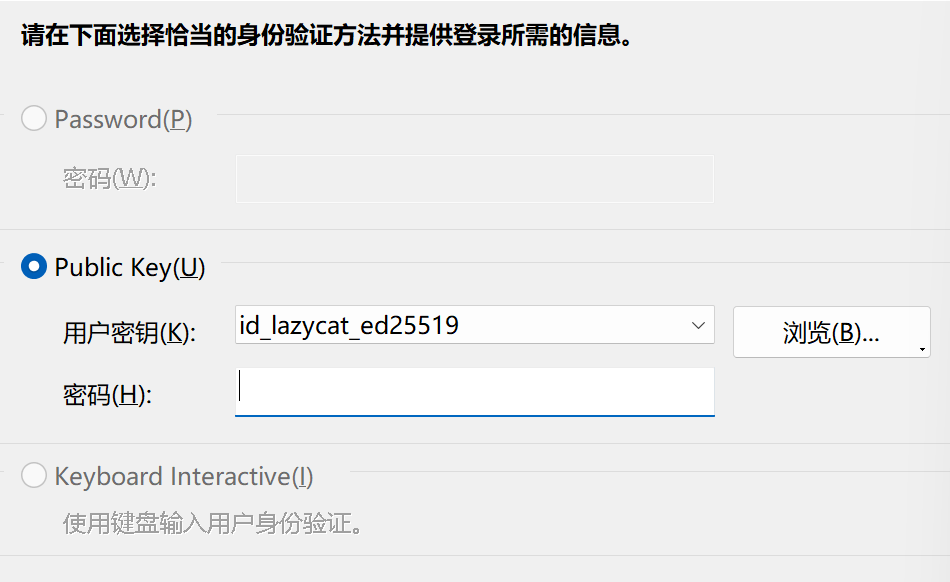
Win11 + 懒猫微服 SSH 免密登录与安全加固总结
适用场景:
- 本文档基于Win11实践,其它设备同理
- 本地开发(Git / PyCharm / Docker)
- 懒猫微服(NAS / 私有云)
- SSH 免密登录 + Docker / PostgreSQL 远程开发
一、最终目标(你已经达成)
- ✅ Win11 → 懒猫 SSH 免密登录
- ✅ GitHub / 懒猫 不同 SSH Key 隔离
- ✅ root 用户 仅允许 key 登录
- ✅ SSH 密码登录 彻底关闭
- ✅ PyCharm 可通过 SSH Tunnel 访问 pg-docker
- ✅ 避免配置被懒猫系统覆盖
二、整体架构示意
Win11 (PyCharm / Git)
   │
   │ SSH (key only)
   ▼
懒猫微服(sshd)
   │
   │ Docker Bridge
   ▼
pg-docker / PostgreSQL
👉 数据库 不暴露公网端口,只走 SSH 本地转发
三、SSH Key 设计(最佳实践)
1️⃣ 本地 SSH Key 划分
ssh-keygen -t ed25519 -f ~/.ssh/id_github_ed25519 -C "github-wtj-king"
ssh-keygen -t ed25519 -f ~/.ssh/id_lazycat_ed25519 -C "lazycat-wtj-king"

# github添加公钥
cat ~/.ssh/id_github_ed25519.pub # 内容复制到GitHub →Settings → SSH and GPG keys → New SSH key

# 将公钥添加到懒猫
ssh-copy-id -i ~/.ssh/id_lazycat_ed25519.pub root@name.heiyu.space

vim ~/.ssh/config # 添加SSH config 示例

~/.ssh/
├── id_github_ed25519        # GitHub 专用
├── id_lazycat_ed25519       # 懒猫微服专用
├── config
2️⃣ SSH config 示例
# ===== 全局默认 =====
Host *
    AddKeysToAgent yes
    UseKeychain yes

# ===== 懒猫微服 =====
Host lazycat
    HostName name.heiyu.space
    User root
    IdentityFile ~/.ssh/id_lazycat_ed25519
    IdentitiesOnly yes
    AddressFamily any


# ===== GitHub =====
Host github.com
    HostName github.com
    User git
    IdentityFile ~/.ssh/id_github_ed25519
    IdentitiesOnly yes
2️⃣ 验证
eval "$(ssh-agent -s)"
ssh-add ~/.ssh/id_github_ed25519
ssh-add ~/.ssh/id_lazycat_ed25519

ssh -T git@github.com # 输入 yes 看到:Hi wtj-king! You've successfully authenticated
ssh lazycat # 直接登录,无密码 ✅
四、懒猫 SSH 配置机制说明(关键)
1️⃣ 主配置文件
/etc/ssh/sshd_config
2️⃣ 扩展配置目录(重点)
Include /etc/ssh/sshd_config.d/*.conf
sshd_config.d中的文件 后加载、可覆盖主配置- 文件名按 字典序 生效(99- 优先级最高)
五、懒猫系统自带配置解析
文件:/etc/ssh/sshd_config.d/lzc.conf
PermitRootLogin yes
ListenAddress 0.0.0.0
ListenAddress fc03:xxxx::xxxx
含义:
- ⚠️ root 允许密码 + key 登录(不安全)
- ⚠️ SSH 监听 IPv4 + IPv6 全网卡
- ⚠️ 会覆盖你在主配置里的设置
👉 不能直接改它(会被系统还原)
六、正确的安全加固方式(推荐方案)
1️⃣ 新建你自己的最高优先级配置
nano /etc/ssh/sshd_config.d/99-wtj-hardening.conf
2️⃣ 推荐配置内容(生产可用)
# ==== WTJ SSH Hardening ====

# 禁止密码登录
PasswordAuthentication no
KbdInteractiveAuthentication no
PubkeyAuthentication yes

# root 仅允许 key 登录
PermitRootLogin prohibit-password

# 仅允许本地端口转发(PyCharm / pg-docker)
AllowTcpForwarding local
GatewayPorts no

# 降低暴力破解风险
MaxAuthTries 3
LoginGraceTime 30s
MaxSessions 3

# 限制可登录用户
AllowUsers root
七、sshd -t 报错的真实原因与解决
报错信息
Missing privilege separation directory: /run/sshd
原因
/run是 tmpfs(内存目录)- 懒猫 / NAS 系统 不会自动创建
/run/sshd - 不是配置错误
解决方式
mkdir -p /run/sshd
chmod 755 /run/sshd
然后再次检查:
sshd -t
八、安全生效流程(不锁死自己)
1. 保留当前 SSH 会话
2. mkdir /run/sshd
3. sshd -t           # 必须无输出
4. systemctl restart ssh
5. 新窗口测试登录
九、最终裁判:查看真实生效配置
sshd -T | grep -E "permitrootlogin|passwordauthentication|allowtcpforwarding"
你应看到:
permitrootlogin prohibit-password
passwordauthentication no
allowtcpforwarding local
👉 这比看配置文件 更权威
十、PyCharm 连接 pg-docker 推荐方式
- PostgreSQL 只监听 Docker 内网端口
- PyCharm 使用 SSH Tunnel
- 不暴露 5432 到公网
优势:
- 🔐 数据库零暴露
- 🧠 认证统一(SSH)
- 🛠️ 运维成本低
十一、关键经验总结(重要)
- 永远不要只看注释,信
sshd -T - 系统注入配置一定在
sshd_config.d - 用 99- 前缀文件做“最终裁决者”
- NAS / 私有云环境下,root + key-only 是最佳平衡
十二、你现在的安全等级
✅ 个人 / 家用 NAS:S 级
✅ 远程开发环境:生产可用
✅ SSH 被扫描:几乎无收益
本文档可作为:
- 个人运维笔记
- 懒猫 / NAS 安全基线
- 以后重装系统的标准模板
评论
0暂无评论